Live slideshow
Your guests' photos, live on the big screen
Open the slideshow on a TV or projector and every photo guests upload appears within seconds, with your QR code on screen so more guests join in. It runs in any web browser and is included on every plan, including Free.
On screen
What your guests see
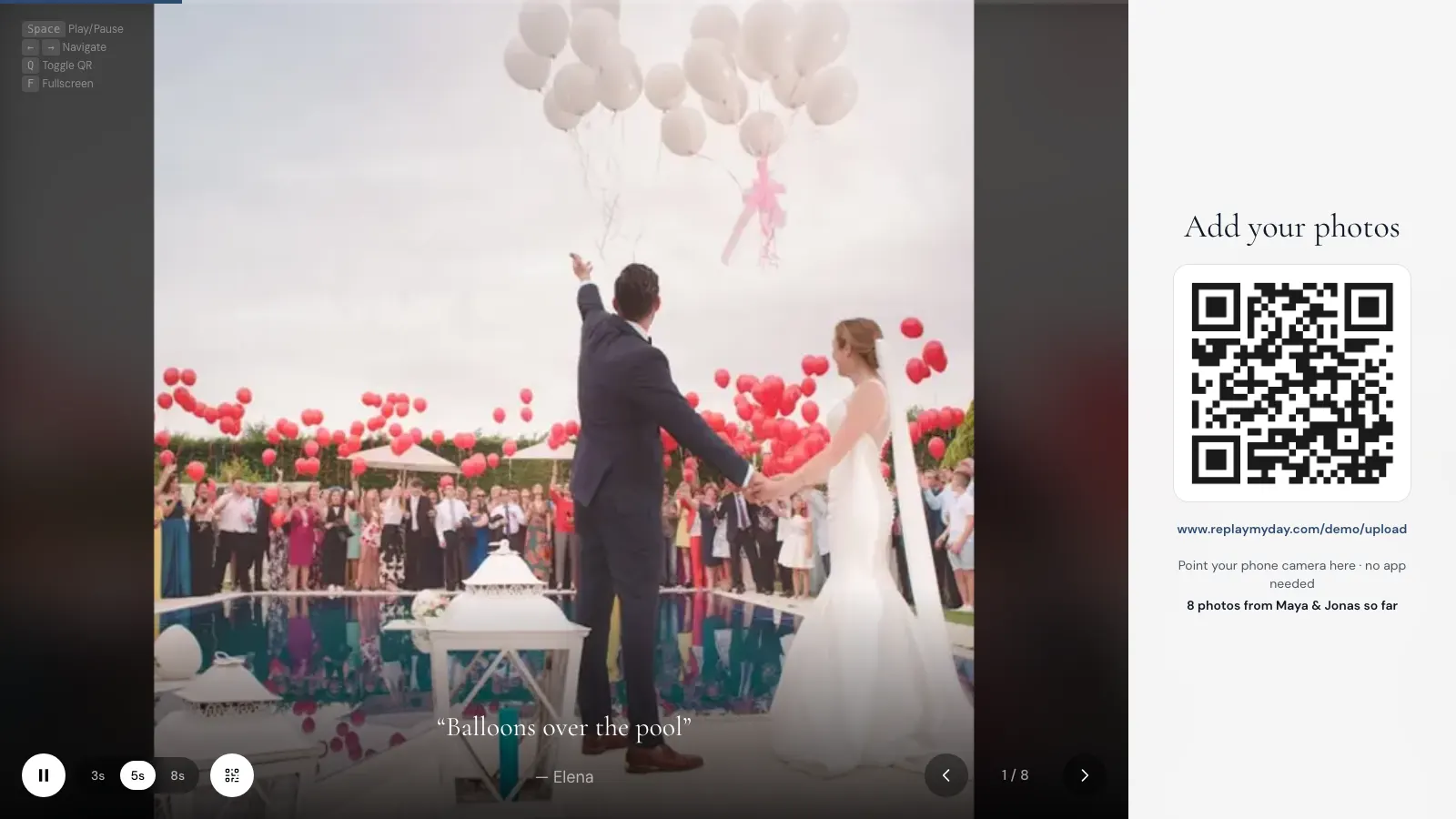
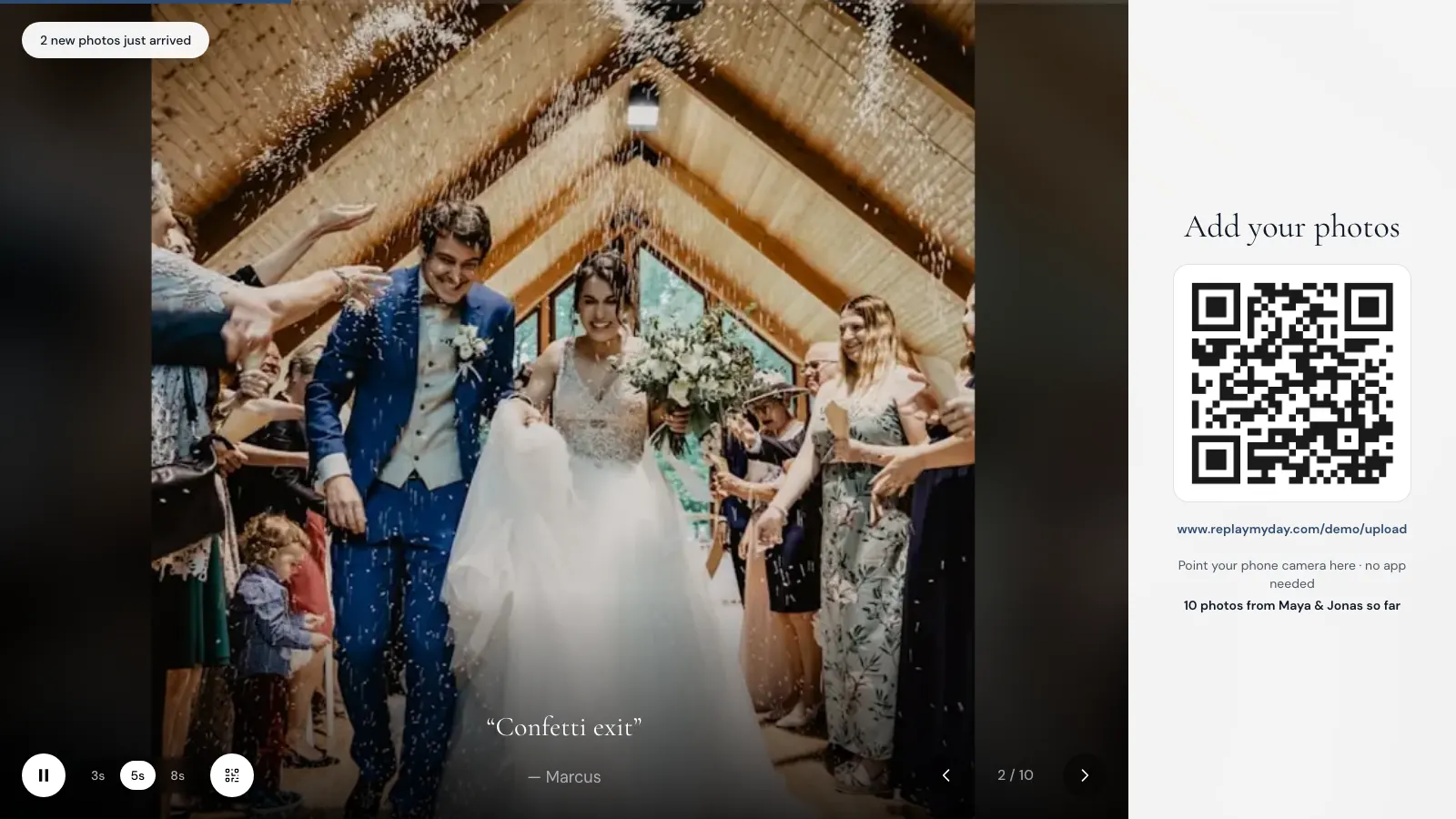
New photos appear on their own
The slideshow checks for new uploads every few seconds and adds them without a refresh, with a short notice such as “Priya just added 2 photos”.
Your QR code stays on screen
A side panel shows your QR code, the upload link and how many photos have been shared, so guests who see the screen can join in. Press Q to hide it.
Captions and names
The message a guest sends with a photo appears beneath it, with their name if you show uploader names.
Full screen in any browser
Press F for full screen and Space to pause, use the arrow keys to step through, and pick 3, 5 or 8 seconds per photo. The controls hide when the mouse is still.
Matches your event
The progress bar and buttons use your event color.
Rides out Wi-Fi drops
If the connection drops for a moment, the photos already loaded keep playing and the slideshow picks up new ones when it reconnects.
Setup
Put it on any screen in three steps
- 01
Open your event
In your dashboard, choose Slideshow at the top of the event, or Start slideshow on a TV. It opens in a new browser tab at your event's slideshow link.
- 02
Put it on the screen
Connect a laptop to the TV or projector with HDMI, cast or AirPlay the browser tab, or open the slideshow link in a smart TV's browser.
- 03
Go full screen and test
Press F for full screen, then upload a test photo from your phone and watch it appear before guests arrive.
More detail in the slideshow setup guide and troubleshooting tips.
You stay in control
Decide what goes on the big screen
All from your event dashboard, before, during or after the event.
Hide or delete
Remove any upload from the gallery and it leaves the slideshow on its next refresh.
Skip in slideshow
Keep a photo in the gallery but off the big screen, one at a time or for a whole selection.
Slideshow approval mode
New uploads still appear in the gallery straight away, but wait for you before they go on screen.
Pause the event
Pausing stops uploads and shows a paused screen on the slideshow until you resume.
Good to know
What the slideshow does not do
Photos are shown on every plan: Free, Starter, Plus, and Premium.
- It shows one photo at a time, full screen, not a grid of tiles.
- Videos play only on Plus and Premium, without sound, and move on at the same pace as photos.
- Guestbook messages sent without a photo stay in the guestbook and are not shown on screen.
- The screen's device needs an internet connection the whole time.
- There is no approval queue for the gallery itself; approval mode applies to the slideshow.
Included on every plan
Start free, pay once if you need more
Try it free, then pay once per event when you want more. No subscription, and you can upgrade before or after the day.
Free collects up to 500 photos or 2 GB. The first 100 photos and 50 guestbook entries are visible, guests can upload through the day after your event, and everything is kept for 7 days. Videos are included with Plus and Premium.
14-day money-back guarantee if you haven't downloaded your originals, and a full refund if no guests upload by 7 days after your event. Refund policy
FAQ
Frequently asked questions
Which plans include the live slideshow?
Every plan: Free, Starter, Plus, and Premium. On Free, the slideshow plays the same photos guests can see in the gallery, the first 100. Guest videos are collected and shown on Plus and Premium.
How quickly do new photos appear?
Within seconds of a guest finishing an upload. The slideshow checks for new photos every few seconds, adds them without a refresh and shows a short notice such as "Priya just added 2 photos".
What do I need to show it on a TV or projector?
A screen, a device with a web browser and an internet connection. Open the slideshow on a laptop connected by HDMI, cast or AirPlay a browser tab, or open the slideshow link in a smart TV's browser. Press F for full screen.
Can I stop a photo from going on the big screen?
Yes. Hide or delete any upload and it leaves the slideshow on its next refresh, or mark it "Skip in slideshow" to keep it in the gallery only. With slideshow approval mode on, new uploads still appear in the gallery but wait for you before they go on screen. Pausing the event pauses the slideshow too.
Do videos play in the slideshow?
Yes, on Plus and Premium. Videos play without sound, and the show moves on at the same pace as photos, so longer clips are cut short on screen. The full video stays in your gallery.
Does the slideshow show guestbook messages?
It shows the message a guest sends with their photos as a caption under the photo. Guestbook messages sent without a photo stay in your guestbook and are not shown on screen.